Git+GitHub Collaboration Notes
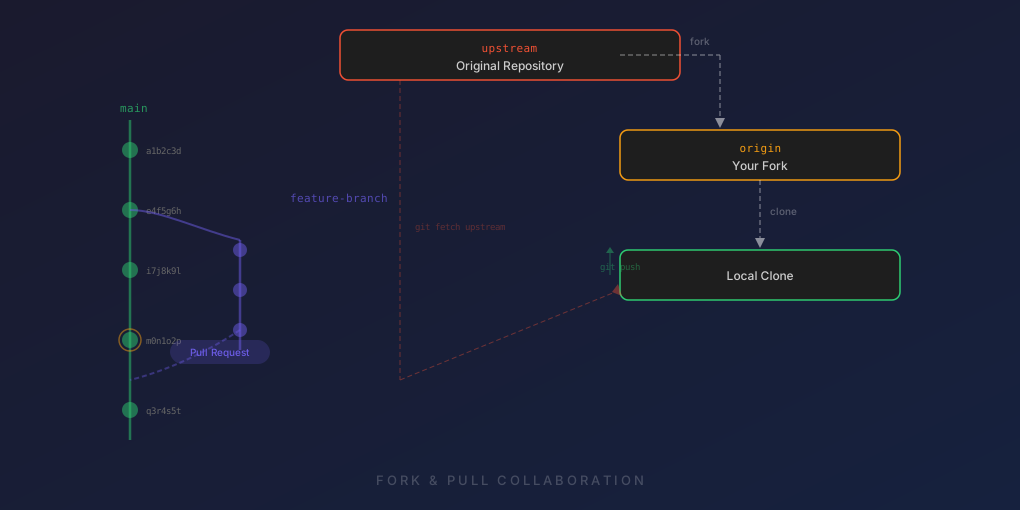
This note provides some info on how to collaborate on software projects using git+GitHub. It is focused on the Fork & Pull collaboration model. This model is described as:
In the fork and pull model, anyone can fork an existing repository and push changes to their personal fork without needing access to the source repository.
Note: While this guide focuses on GitHub, the core git commands work across all major hosting services including GitLab, Bitbucket, and others. The UI steps for creating pull/merge requests will differ slightly between platforms.
Definitions
For me, the terminology was one of the most confusing things about learning to collaborate on git+GitHub. I’m not sure if the definitions I give below are “standard” (again feedback welcome!). But for the sake of clarity, these are the definitions I’ll use here.
-
repository (or repo)
n.: A location for software or documents, typically hosted in GitHub or GitLab. “My code is stored in a repo on GitHub.”
-
fork
n.: A copy of a repo that you created by forking that repo in GitHub. “My fork of that repo got munged.”
v.: To make a copy of a repo. “Feel free to fork my repo on GitHub.”
-
clone
n.: A local copy of a repo. “I added some files to my clone of the repo.” I’ve heard people refer to a clone as a repo. But for this gist, I’ll try to keep them separate to make it clear what I’m referring to.
v.: To make a copy of a repo to your local machine. “I forked your repo, but I haven’t yet cloned it to my dev box.”
-
remote
n.: The location of a repo or a fork. The url of a remote is added to a clone and a clone can have more than one remote. “Here’s the url of my repo that you can add as a remote for your clone.”
A remote has a name. Two commonly used names for remotes are “origin” and “upstream”. “origin” usually refers to the fork from which you generated your clone, and “upstream” typically refers to the original GitHub repo from which you generated your fork:
    +----------+
    | original |              +----+
    |   repo   |------------->|fork|
    +----------+              +----+
          ^                      ^
          |                      |  "origin"
          |                      |
          |     "upstream"    +-----+
          +-------------------|clone|
+-----+-
branch
n.: Development in git happens on a branch. The metaphor is that a repo is a tree and modifications to the repo happen on its branches. We create a new branch from an existing branch. Once a new branch has been created, changes made to that branch won’t affect any other branch, including the branch from which it originated. (The tree metaphor is not perfect because in git we can merge two branches.)
Each branch must be given a name. Here is GitHub’s branch naming guideline. There is one branch, the “main” branch, that is special. (Historically this was called “master”, but GitHub changed the default to “main” in 2020.) Well, actually, there is nothing special about this branch. It’s only special by convention. The convention is that the “main” branch should always contain a stable, buildable version of the code. (So don’t develop on the “main” branch!) Before code from a branch is merged into “main”, it should be reviewed by one or more developers familiar with the repo. In addition to human review, automated tests (often via GitHub Actions) are run to make sure the code is as bug-free as possible.
Collaboration Details
Let’s say someone has a repo on GitHub and you’d like to contribute. The first step in the “Fork & Pull” collaboration model is to fork their repo. This is easy — just click on the “Fork” button on their repo’s GitHub page.
Once you have forked the repo you have your own copy and are can begin making changes to the code. To get started, run the following on your development machine:
git clone https://github.com/YOUR-GITHUB-USER-NAME/REPO-NAME.gitReplacing “YOUR-GITHUB-USER-NAME” with your GitHub user name, and “REPO-NAME” with the name of the repo you forked. This will create a clone of your fork. The clone will be put into a subdir whose name is the same as the REPO-NAME.
Before you begin working with your clone, do the following:
cd REPO-NAME
git remote add upstream https://github.com/ORIGINAL-AUTHOR-GITHUB-USER-NAME/REPO-NAME.git
This will add a new remote called “upstream” to your clone. So your clone will now have two remotes: “origin” and “upstream”. The “origin” remote refers to your fork of the original repo and “upstream” refers to the original repo you forked from. I’ll talk about why we need the “upstream” remote below.
Making changes and saving them to “origin”
-
Before changing any code, create a new branch:
$ git checkout -b BRANCH-NAMEThis says to create and then switch to a new branch named “BRANCH-NAME”.
-
Make some changes to the code. For example, modify the
.gitignorefile:$ vim .gitignore # make changes and quit vim -
Add and commit the changes:
$ git add .gitignore$ git commit -m "your commit message here" -
Push the changes to “origin” (your fork):
$ git push origin BRANCH-NAME
Getting your changes to “upstream”
This is also known as creating a “pull request”. Why is it called a “pull” request? Because you are asking the owner of the original “upstream” repo to consider “pulling” your changes into their repo.
After you completed step 4 above, your changes will live in your fork as well as in your local clone. If you view your fork on GitHub, it will show you your recently-pushed branch (BRANCH-NAME). Now you can click on the “Pull Request” button to create the pull request.
Keeping your fork up to date
You’re probably not the only person generating pull requests to the original “upstream” repo. So to update your fork you can run these commands in your local working dir:
git checkout main
git fetch upstream
git merge upstream/main
git push origin main
This will checkout the “main” branch in your clone (just in case you happened to be on another branch), fetch and then merge changes from the “main” branch in the “upstream” repo, and then push all of this new code to the “main” branch in your fork (“origin”).
Other Git Notes
Good Git Guides
- http://rogerdudler.github.io/git-guide/
- http://marklodato.github.io/visual-git-guide/index-en.html
- http://www.wei-wang.com/ExplainGitWithD3
Git Submodules
- http://blog.jacius.info/git-submodule-cheat-sheet/
- http://joncairns.com/2011/10/how-to-use-git-submodules/
Tagging
Creating an annotated tag in Git is simple. The easiest way is to specify -a when you run the git tag command:
$ git tag -a v1.4 -m 'my version 1.4'
$ git tag
v0.1
v1.3
v1.4
The -m specifies a tagging message, which gets stored with the tag. If you don’t specify a message on the command line, git launches your editor so you can add a message.
You can see the tag data along with the commit that was tagged by using the git show command.
Note that by default the git push command does not transfer tags to remotes. So you must push the tag like so:
git push origin tag TAG-NAMERebasing
Assume the following history exists and the current branch is called “topic”:
                 A---B---C topic
                /
           D---E---F---G main
From this point, the result of the following commands:
git checkout topic
git rebase main
would be this:
                         A'--B'--C' topic
                        /
           D---E---F---G main
Note: you can also rebase from the “upstream” main branch with:
git rebase upstream/mainIn case of a conflict, git rebase will stop at the first conflict and leave
markers in the code. You can use git diff to locate the markers <<<<<< and
make edits to resolve the conflicts.
For each file you edit/fix, you need to tell Git that the conflict has been resolved. This can be done with:
git add FILENAMEAfter resolving the conflicts, you can continue the rebasing process with:
git rebase --continueAlternatively, you can undo the git rebase with:
git rebase --abortDiscarding unstaged changes
git stash
git pull
git stash drop
Pull vs Fetch
git pull does a git fetch followed by a git merge.
Working on someone else’s pull request
If someone has created a pull request against the “upstream” repo and you’d like to make changes to the branch from which they issued the pull request, you can do:
git fetch upstream
git checkout BRANCH-NAME
make changes and then:
git push upstream BRANCH-NAMEWorking with remotes
Show all remotes
git remote -vAdd a new remote
git remote add REMOTE-NAME https://github.com/ORIGINAL-AUTHOR-GITHUB-USER-NAME/REPO-NAME.gitGet more info about a remote
git remote show REMOTE-NAMERename a remote
git remote rename OLD-REMOTE-NAME NEW-REMOTE-NAMERemove a remote
git remote rm REMOTE-NAMEChange the URL of a remote
git remote set-url REMOTE-NAME NEW-GIT-URLFetching from a remote (doesn’t merge)
git fetch REMOTE-NAMEModern GitHub Tools and Features
GitHub CLI (gh)
The GitHub CLI is an official command-line tool that brings GitHub features directly to your terminal. It’s incredibly useful for streamlining your workflow without switching to the browser.
Installation
# macOS
brew install gh

# Windows
winget install --id GitHub.cli

# Linux (Debian/Ubuntu)
sudo apt install gh
Common Commands
# Authenticate with GitHub
gh auth login

# Create a pull request from the current branch
gh pr create --title "My feature" --body "Description of changes"

# List open pull requests
gh pr list

# View a pull request in the browser
gh pr view --web

# Check out a pull request locally
gh pr checkout 123

# Create an issue
gh issue create --title "Bug report" --body "Description"

# Clone a repo (shorter than git clone)
gh repo clone owner/repo

# Fork a repo and clone it
gh repo fork owner/repo --clone
The GitHub CLI also supports creating draft PRs, assigning reviewers, and managing labels—all from the command line.
GitHub Actions
GitHub Actions is GitHub’s built-in CI/CD platform that automates workflows directly in your repository. It’s become the standard way to run tests, build projects, and deploy code on GitHub.
Basic Workflow Example
Create a file at .github/workflows/ci.yml:
name: CI

on:
  push:
    branches: [main]
  pull_request:
    branches: [main]

jobs:
  test:
    runs-on: ubuntu-latest
    steps:
      - uses: actions/checkout@v4
      - name: Set up Node.js
        uses: actions/setup-node@v4
        with:
          node-version: '20'
      - run: npm ci
      - run: npm test
This workflow runs automatically on every push to main and on every pull request targeting main. GitHub Actions integrates seamlessly with pull requests, showing check statuses directly on the PR page.
Branch Protection Rules
For repositories with multiple contributors, branch protection rules help maintain code quality:
- Go to Settings → Branches → Add rule
- Common protections include:
- Require pull request reviews before merging
- Require status checks to pass (e.g., GitHub Actions tests)
- Require branches to be up to date before merging
- Restrict who can push to the branch
Draft Pull Requests
When you’re still working on changes but want early feedback, create a draft PR:
gh pr create --draft --title "WIP: New feature"Draft PRs signal that your work isn’t ready for final review. When you’re ready, convert it to a regular PR by clicking “Ready for review” or using:
gh pr readyCode Review Best Practices
Modern GitHub collaboration emphasizes thorough code review:
- Use suggested changes: Reviewers can propose specific code changes that authors can accept with one click
- Request specific reviewers: Use
gh pr create --reviewer usernameor CODEOWNERS files - Use review threads: Keep discussions focused on specific lines of code
- Require approvals: Configure branch protection to require one or more approving reviews